1. Overview
We provide Mixly graphical programming plugins and example code. Installation is simple and easy to use, allowing you to quickly implement all the features of this driver board.
2. Download Mixly
For Mac systems, it is recommended to download the latest version from the Mixly official website and then install the plugin: Click here to jump to the Mixly official website
Click to download the plugin-free Windows version of Mixly
3. Download the Qiguopai Plugin
Windows systems can skip this step
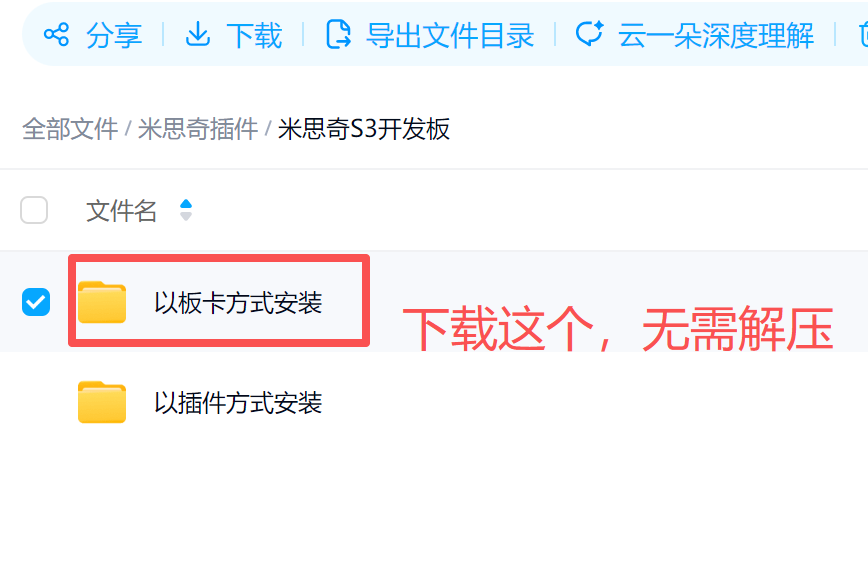
4. Install the Plugin
If you downloaded our Mixly, you can skip this step; if you downloaded Mixly from the Mixly official website, please install the plugin.
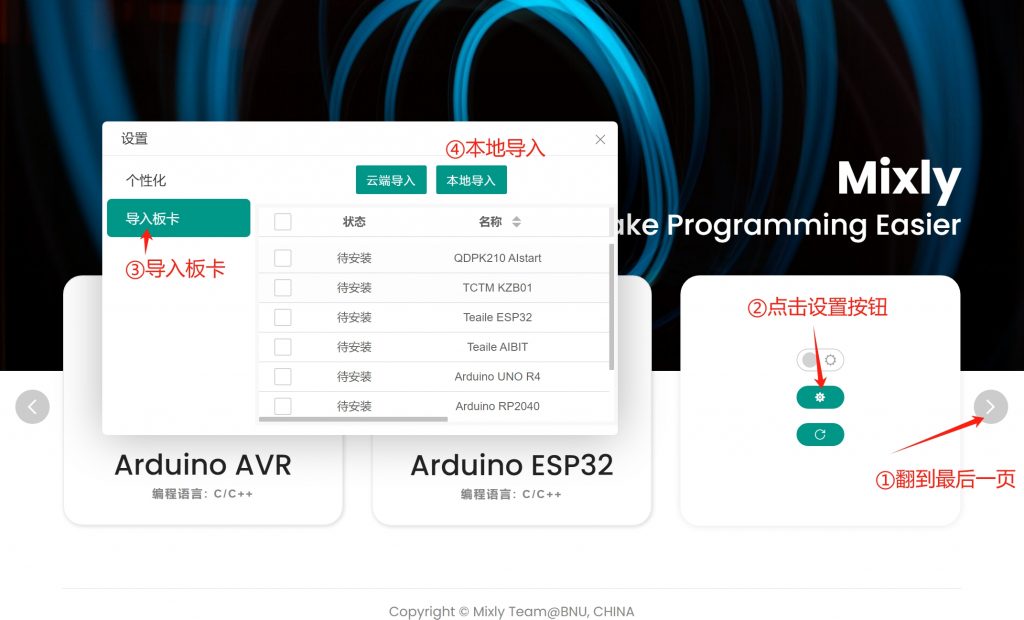
After clicking "Local import", select the plugin archive you just downloaded. The interface will automatically refresh and display the new board, as shown below.
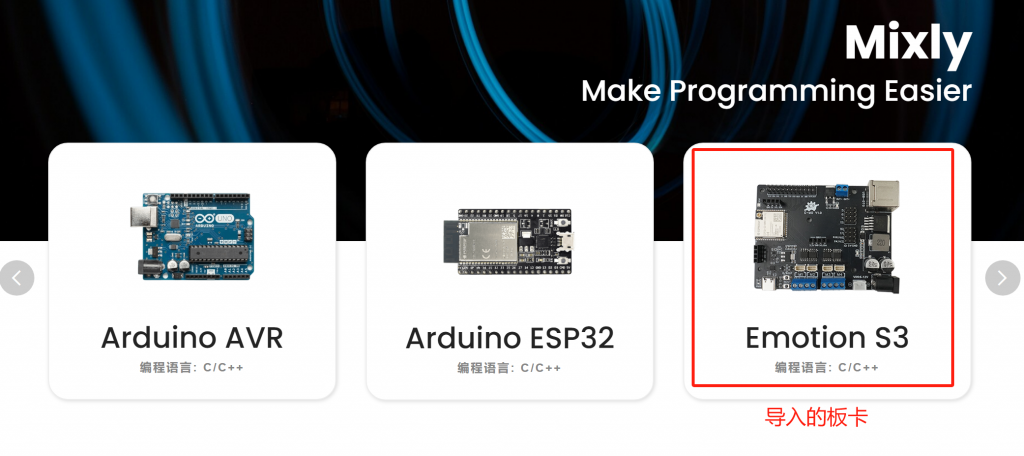
Click the board to enter the editing interface.
If we update the plugin in the future, you can re-download the plugin, click the X in the top-right corner of the board to delete it, and install it again.
5. Start Programming
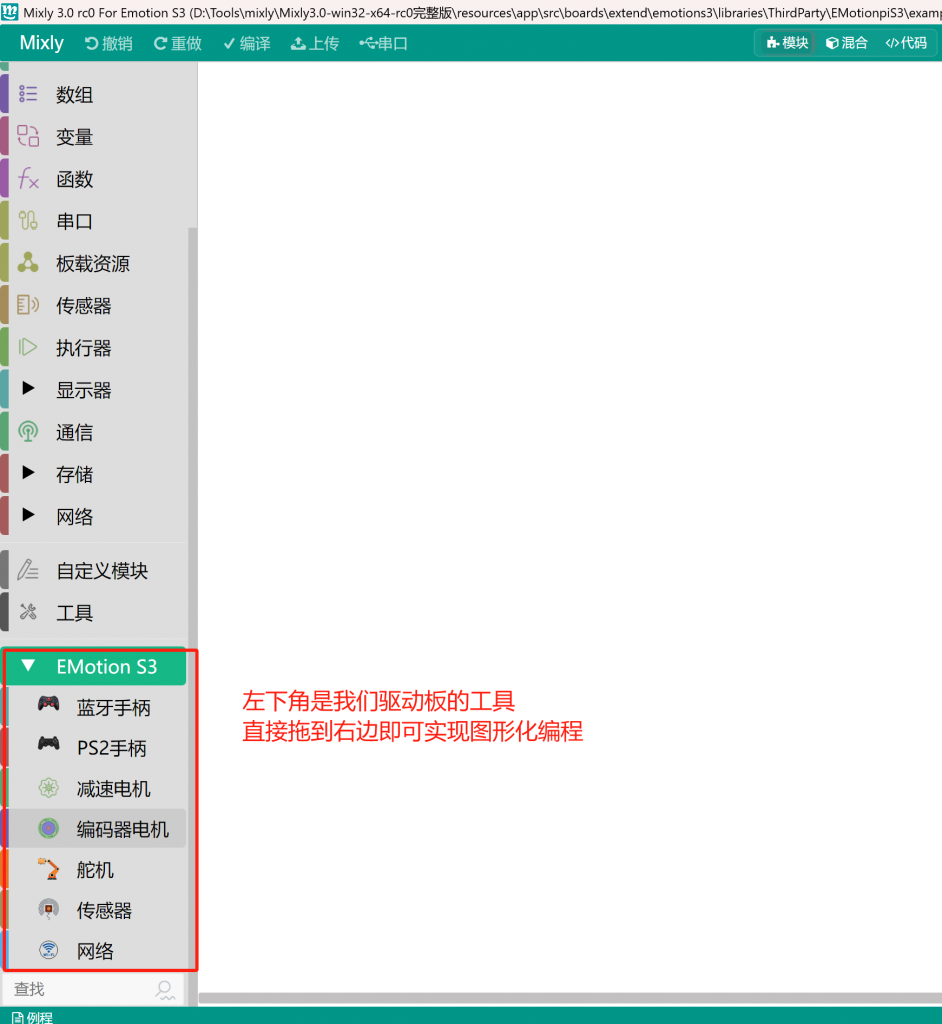
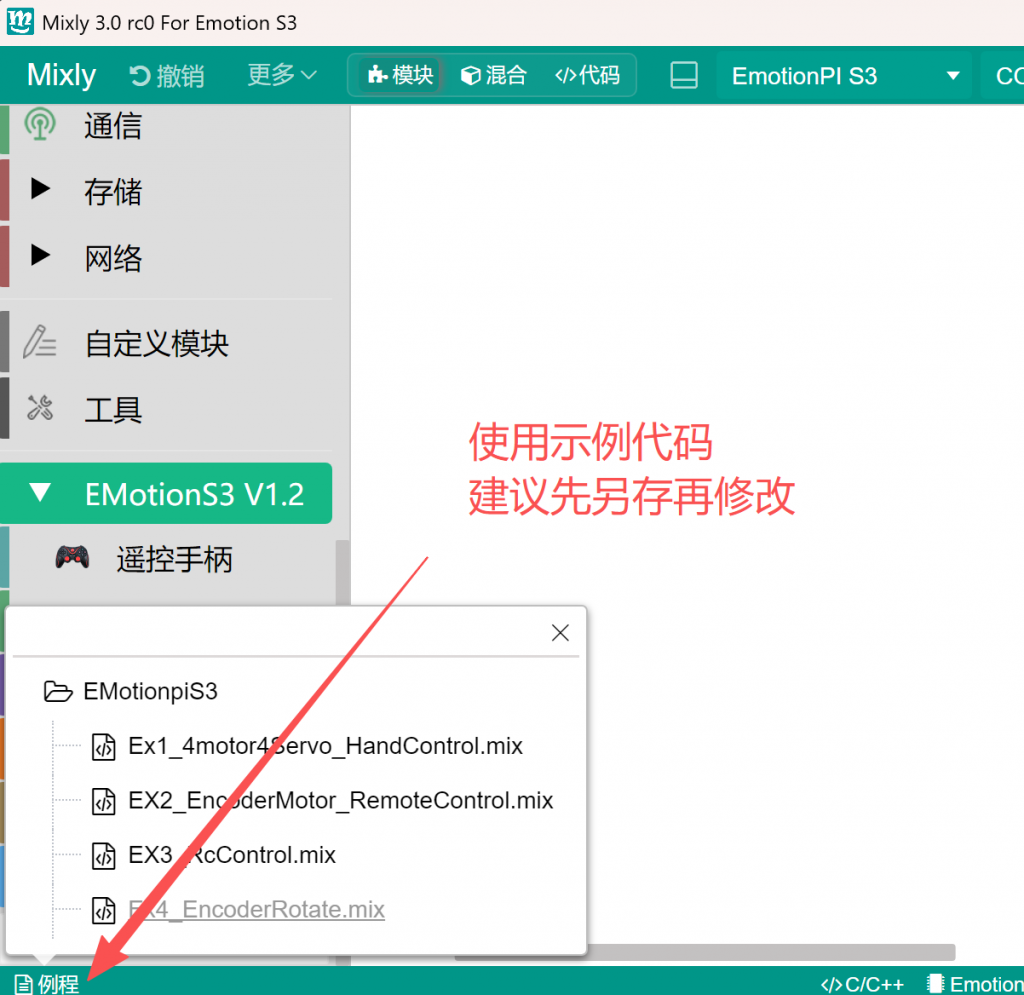
6. Use the Example Code
It is recommended to save a copy first after opening the example, then modify it, to avoid changing the original example code.
Plug in the driver board, select the corresponding serial port, and click Upload.
Because the Bluetooth library is large, the first compilation in Mixly takes a long time; please be patient.
7. Connect the Bluetooth Gamepad
-
First upload the program to the driver board;
-
For the first connection, press and hold the X key + Home key to start the gamepad; LED 4 on the gamepad will light up;
-
If LED 4 stays lit, it means it is connected; if it flashes, it means it is scanning for devices;
-
If it is not LED 4 that lights up, press and hold the Home key to power off, then try step 2 again.
-
Common Issues
-
If the upload fails with the following error, you can fix it with the following steps:
-
Mixly error: something like the file bits/c++config.h cannot be found.
-
Solution: Open the following directory D:\Replace with your install directory\Mixly3.0-win32-x64-rc0 one-click update version\arduino-cli\Arduino15\packages\esp32\tools\xtensa-esp32s3-elf-gcc\esp-2021r2-patch5-8.4.0\xtensa-esp32s3-elf\include\c++\8.4.0\xtensa-esp32s3-elf\bits
-
Copy all the files in that directory to D:\Replace with your install directory\Mixly3.0-win32-x64-rc0 one-click update version\arduino-cli\Arduino15\packages\esp32\tools\xtensa-esp32s3-elf-gcc\esp-2021r2-patch5-8.4.0\xtensa-esp32s3-elf\include\c++\8.4.0\bits
Upload again.