Driver Installation
This section is not required reading. It is only used when the ESP32 main control board cannot be recognized by the computer. If it is already recognized, you can skip it directly!!! (Note: If the ESP32 main control board cannot be recognized in the Arduino, Mixly or KidsBlock(Scratch) tutorials, please first check whether the ESP32 main control board is properly connected and try again by connecting it to another USB port on the computer. If it still does not work, then proceed with the following driver installation steps)
1. Install the Driver on Windows
Driver download for Windows 10 and above: Click to download Windows Driver
Driver download for Windows 7: Click to download Windows7 Driver
-
Connect the ESP32 main control board to the computer:
-
Open "Device Manager"
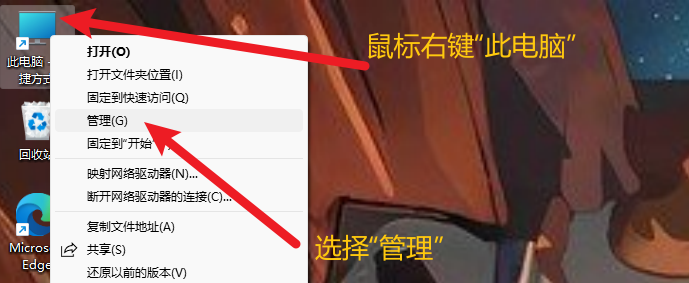
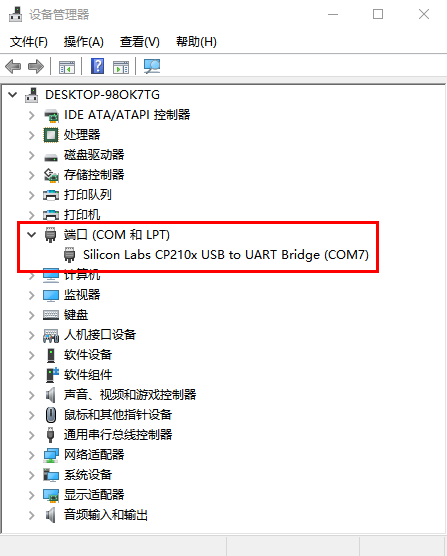
- Check whether the driver is installed.
Case 1: The driver is installed. Please skip the driver installation tutorial and proceed to the next step of learning.
Case 2: The driver is not installed. Please follow the installation tutorial below to install the driver manually. (1) Right-click "USB Serial", select "Update Driver (P)" and click it.
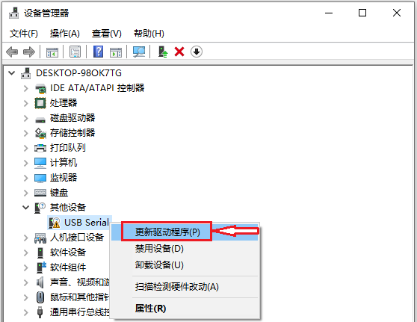
(2) Go to the following page, select "Browse my computer for drivers (R)" and click it.
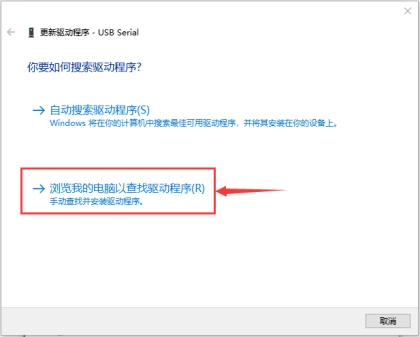
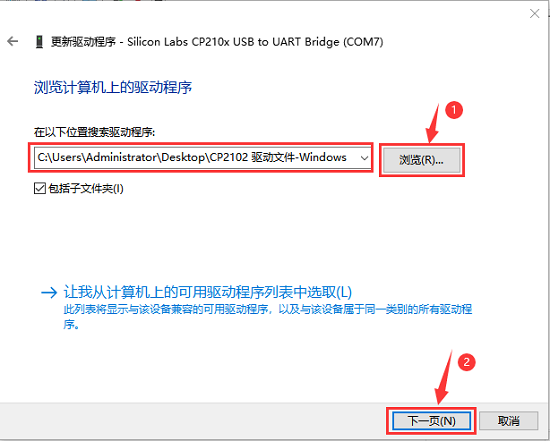
(3) Go back to the beginning to download the Windows CP2102 driver, copy the driver file to the computer desktop , then extract the downloaded driver archive, and click "Browse (R)..." to select the driver for the CP210X series chip (that is, the folder obtained after extraction), and finally click "Next". The location is as follows
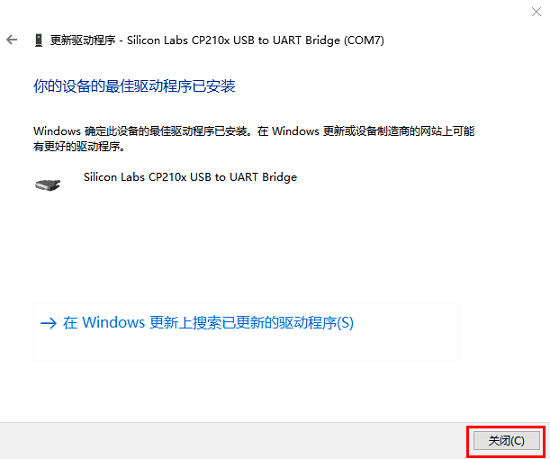
(4). If the interface shows a message similar to the one below, it proves that the driver was installed successfully. Click "Close".
(5). After the driver installation is complete, select the "Ports" option. The yellow exclamation mark on the USB disappears, proving that the driver installation is complete.
2. Install the Driver on Mac
(Note: If the driver has already been installed, there is no need to install it again; if not, you need to perform the following operations) (1) Use a USB cable to connect the ESP32 main board to your MacOS computer.
(2) CP2102 driver download link: CP2102 Driver Download
(3) Extract the downloaded archive.
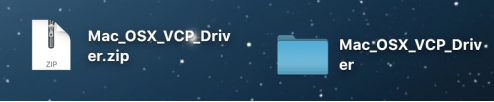
(4) Open the folder and double-click the "SiLabsUSBDriverDisk.dmg" file.
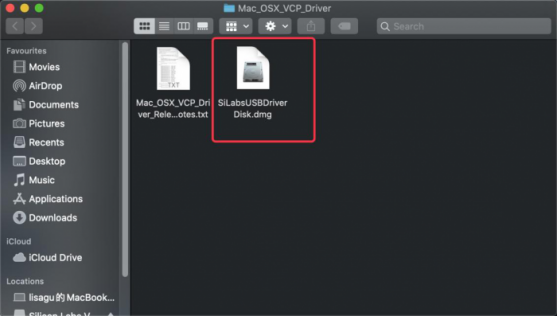
You can see the following files.
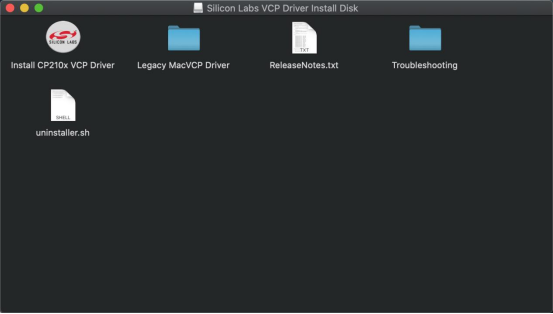
(5) Double-click "Install CP210x VCP Driver", check "Don't warn me when opening application on this disk image" and click "Open".
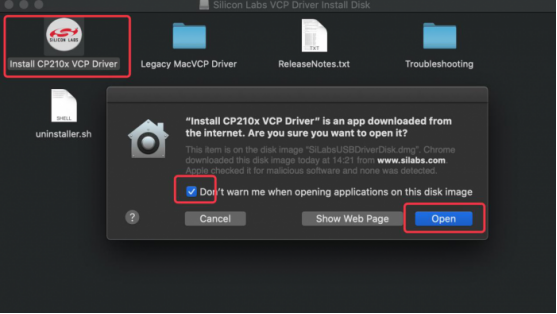
(6) Click "Continue".
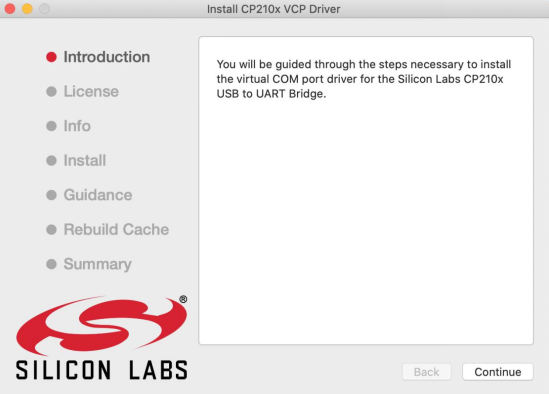
(7) First click "Agree", then click "Continue".
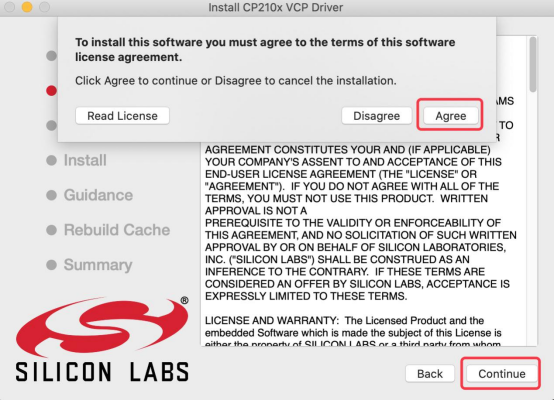
(8) Continue to click "Continue", then enter your user password
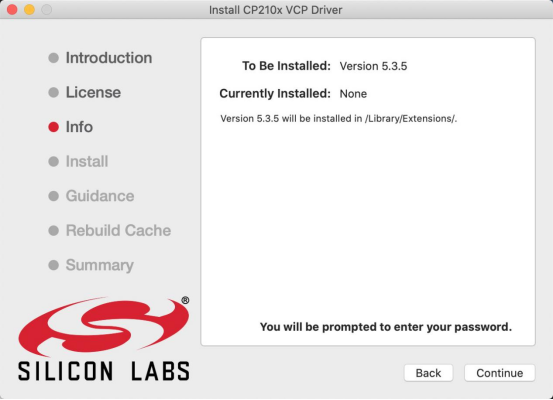
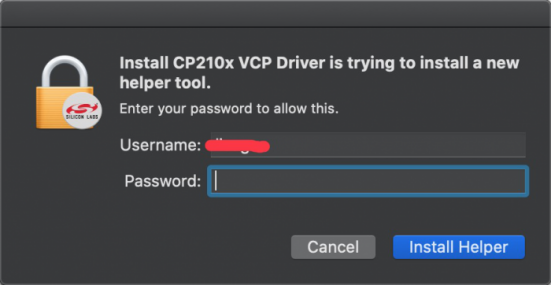
(9) Select "Open Security Preferences".
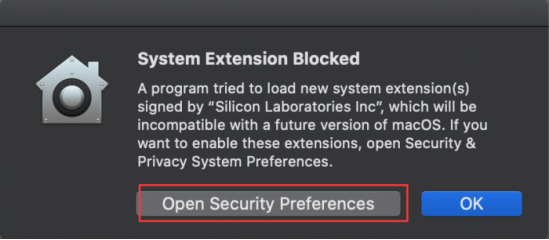
(10) Click the security lock and enter your user password to authorize it. (The unlock password used when entering the desktop at computer startup)
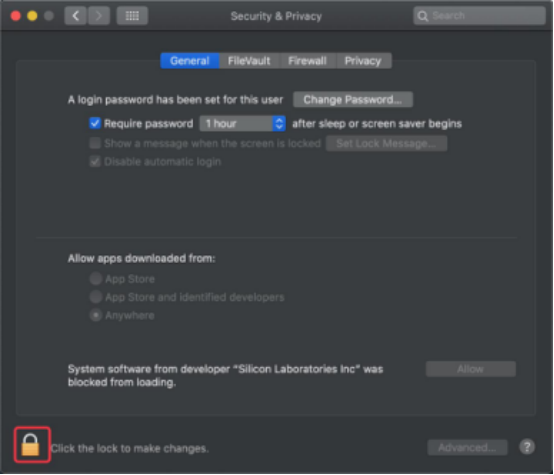
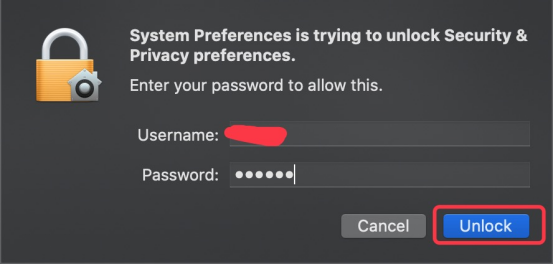
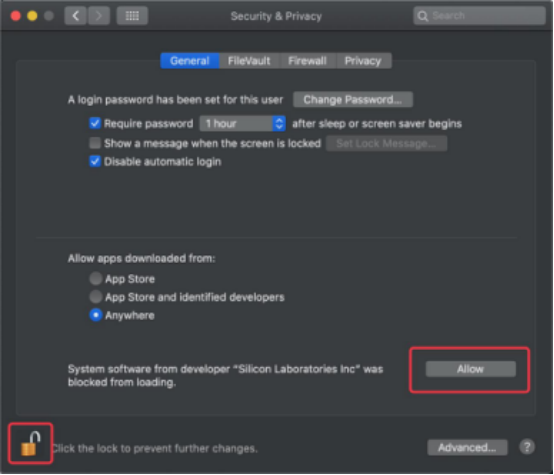
(11) Seeing that the lock has been opened, click "Allow".
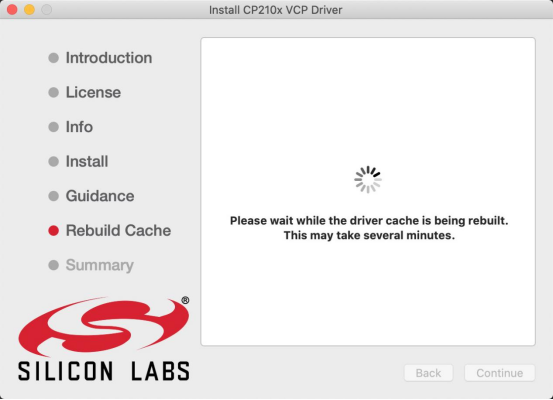
(12) Return to the installation interface and wait for the installation according to the prompts.
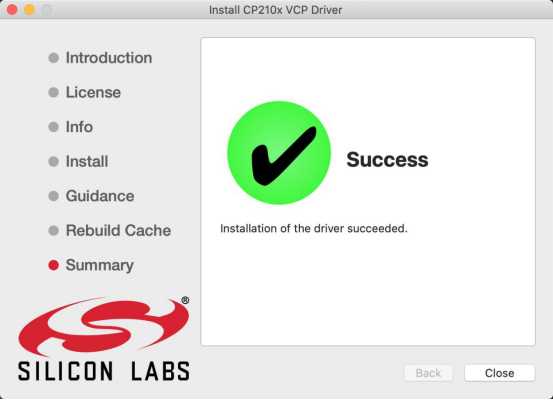
(13) Installation successful